I Built a PDF Tool So I Wouldn't Have to Upload My ID
A small browser tool to read, rearrange, merge, split and password protect PDFs without uploading them anywhere.
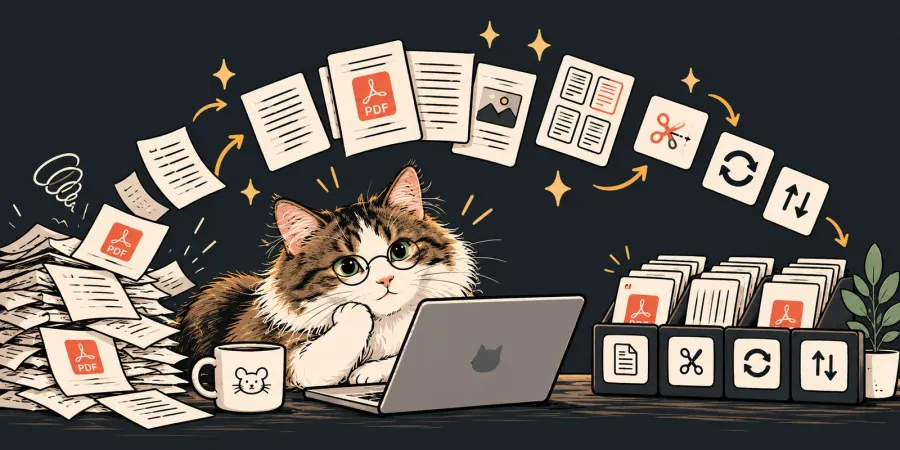
I don’t edit PDFs very often. But last week I had to upload the front and back of my ID card separately. Both sides were in one PDF. To split it, my PDF reader wanted me to upgrade to a paid plan.
Yes, there are tons of free PDF sites. But did I want to feed their ads and subscriptions, or upload my ID to a service I knew nothing about? No.
So I built my own little tool. The PDF Workbench runs in your browser. It can read, rearrange, merge, split and password protect PDFs without uploading them anywhere.
The feature that started it all
My problem was simple. One PDF, two pages, and I needed each page as its own file.
That is what the Split tool does. You can cut a PDF after any page. For a two page PDF like my ID card, one cut after page 1 gives you two separate files.
You can also split every few pages, or by ranges like 1-3, 4-8. Or select only the pages you want and pull them out. The parts download together in one ZIP file.

The other tools
Split is one of five tools. Add one PDF or several, and the pages show up on a green cutting mat. Here are the other four.
Read
Check the page size, the metadata and whether a file is protected. You can also copy the text from any page.

Organize
Drag pages into order, rotate the ones that came in sideways, duplicate pages, insert blank ones or delete what you don’t need. If you make a mistake, you can undo it.


Protect
Add a password with AES-128 encryption. If you know a PDF’s password, you can also unlock it and save an unprotected copy.
One thing to know: a PDF can have two kinds of passwords. An open password encrypts the file, so nobody can read it without the password. An owner password only limits printing, copying and editing. Anyone can still open the file, and some PDF software ignores those limits. For anything sensitive, use an open password.

How your files stay on your device
This is the part I care about most. When you add a PDF, the browser reads it into its own memory and does all the work there. The finished file is saved straight to your device. There is no upload step, so my server never receives your file.
Two open source libraries do the heavy lifting. PDF.js from Mozilla displays the pages, and pdf-lib edits and saves them.
One thing the tool pages do collect is visit counts. They use only Cloudflare Web Analytics, which sees the page address and how fast it loaded. It sets no cookies and does not see your PDFs. My blog posts, like this one, also use Google Analytics, but it never runs on the tool.
This matters most for the files people often upload to free PDF sites without a second thought. A contract before you sign it, an offer letter, bank statements, tax slips, a medical form. Or an ID card.
Test it yourself
Many PDF sites say they delete your files after an hour. You have to take their word for it. You can check this one yourself.
Open the Workbench and load a PDF. Then turn off your Wi-Fi and merge, split or lock it. Everything still works, because nothing needs the internet once the page has loaded. There is nothing to install either.
What it can’t do yet
Saving always creates a new PDF. That means digital signatures are removed, and fillable forms may stop being fillable.
Read can’t pull text from scanned pages, because those pages are images. Very large files depend on your device’s memory and can be slow on a phone.
You also need the password to open a locked PDF. The Workbench does not crack passwords, and it won’t.
The tool is still a work in progress. That’s part of the point of putting it out there. I can use it myself, see where it breaks, and learn from what other people actually need. If you hit a limit I haven’t listed, the Report a bug link on every tool page goes straight to me.
The PDF Workbench also works in Français, 简体中文, 繁體中文(台灣), 繁體中文(香港) and العربية.
Translations were assisted by an LLM and have not all been professionally reviewed. Some wording may be more fluent than others. The tool handles PDFs; the translations are still processing. 😅